Writing Your First Transformer
Follow these steps to develop and deploy your first SDL transformer.
1. Set up your environment
Make sure your development environment is fully configured - this includes installing all necessary tools, dependencies, and starting your local cluster.
Refer to Tools and Environment for a step-by-step guide.
2. Learn about pipelines and transformers
Understand the core concepts behind transformers and their purpose in the pipeline engine.
Pages in the user docs site have more detailed information on:
-
What a transformer is
-
Required input/output contracts
-
How to write a valid
transformer.jsonfile
3. Write the Transformer Code
The sdl-transformer repository contains the majority of SDL’s built-in transformations and is the best place to look for examples. Connectors handle I/O (Kafka, stdin/stdout, TAK servers, PostGIS, Foundry, Lattice, etc.) while transformers handle format conversion.
All configuration is done via environment variables — see the sdl-transformer README for the full list of supported formats, connectors, and configuration options.
If sdl-transformer does not fit your use case (e.x. needing to write the transformer in a different programming language), you can write a standalone transformer. There are examples of this in the df-pipeline-transformers repository.
4. Write a Makefile and build your Docker image
If you added your transformation sdl-transformer, use the make kind command to update the image in the cluster.
If you created your own transformer, you should create a Makefile to automate building your Docker image and loading it into your local cluster.
You can find examples in existing SDL pipeline repositories for reference.
Your Makefile should include targets similar to the following:
docker:
	docker build -t ghcr.io/raft-tech/<image-name>:dev .

kind:
	kind load docker-image ghcr.io/raft-tech/<image-name>:dev --name <cluster-namespace>
Replace image-name, and cluster-namespace with the appropriate information.
You can then run:
make docker   # Build the Docker image
make kind     # Load the image into your cluster
5. Register your transformer
Navigate to the "Transformers" tab on the "Catalog" page to add your transformer in the system. This step applies the transformer.json configuration to the cluster.
Make sure the image referenced in your transformer.json matches the image you built and loaded into the cluster in step 4.
|
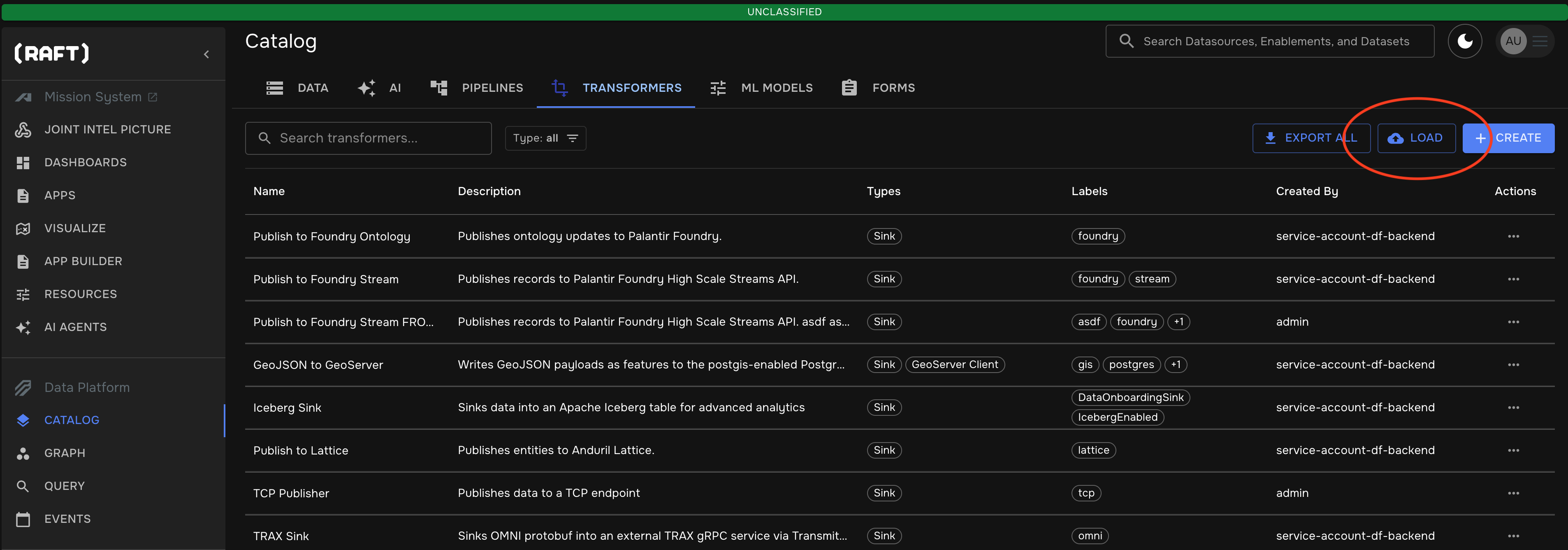
If you are updating an existing transformer, you can click on that transformer to edit its configuration on the same page.