Compass Pipeline
This guide walks operators through onboarding Compass video feeds through SDL. The workflow discovers live Compass feeds, selects one feed as the pipeline trigger, and starts a Compass-to-Kafka pipeline for downstream processing.
- Prerequisites
- Step 1: Start data onboarding
- Step 2: Select Compass Video Feeds
- Step 3: Configure the Compass source
- Step 4: Generate a Compass token
- Step 5: Save the source and select a discovered feed
- Step 6: Design the pipeline
- Step 7: Configure outputs
- Step 8: Review and start
- Step 9: View the running pipeline
- Validate Compass data
- Troubleshooting
Prerequisites
Before starting, make sure you have:
-
Access to SDL
-
Permission to connect data sources and create pipelines
-
Access to Compass
-
The Compass host URL for the target environment
-
A Compass API token with permission to discover video feeds
Step 2: Select Compass Video Feeds
-
On the Add Data page, keep Sources selected.
-
Search for
compass. -
Under Platform Sources, select Compass Video Feeds.
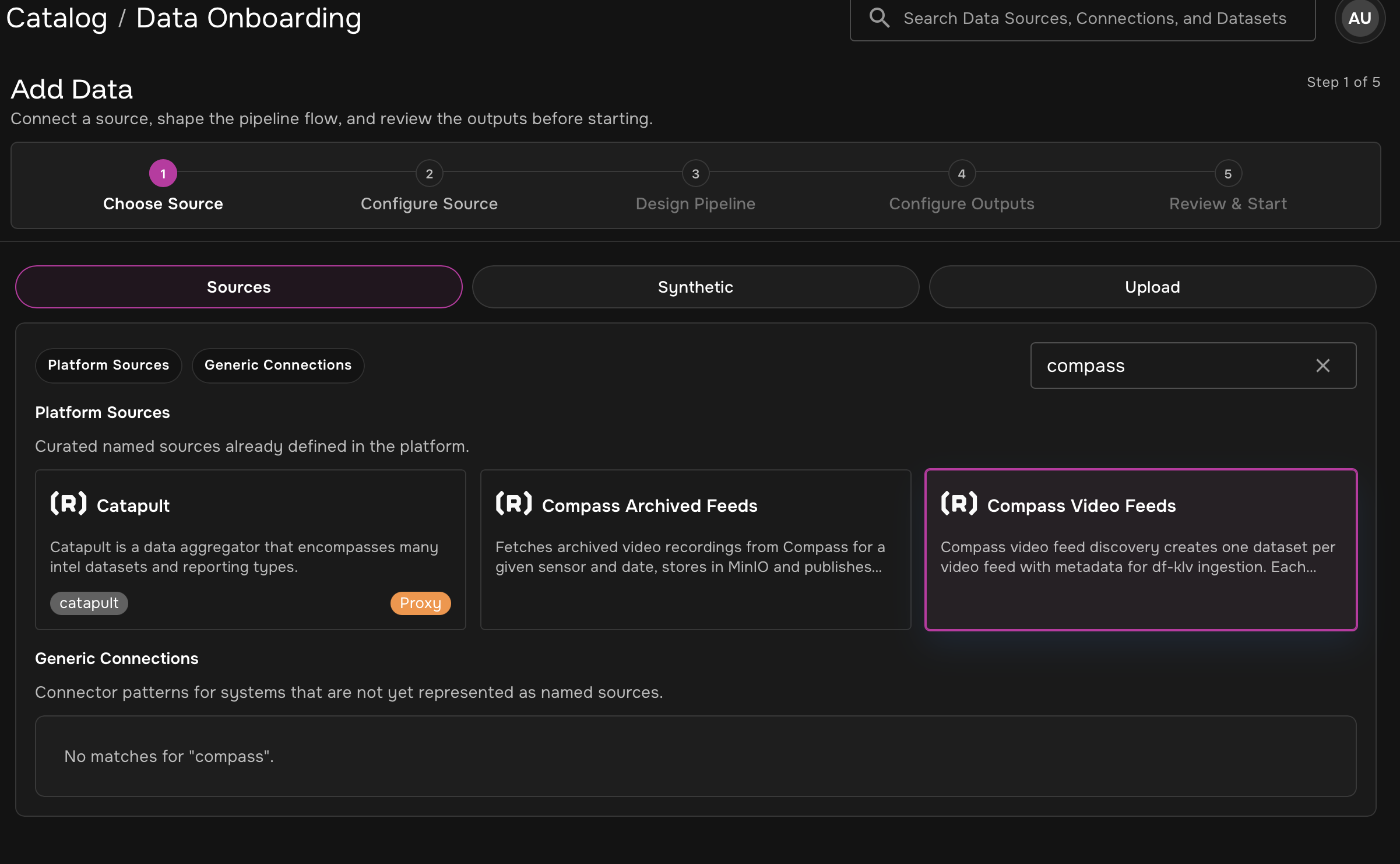
Use Compass Archived Feeds only when onboarding archived recordings for a known sensor and time range.
Step 3: Configure the Compass source
Enter the connection information for the Compass source. The token can be generated from Compass if you do not already have one.
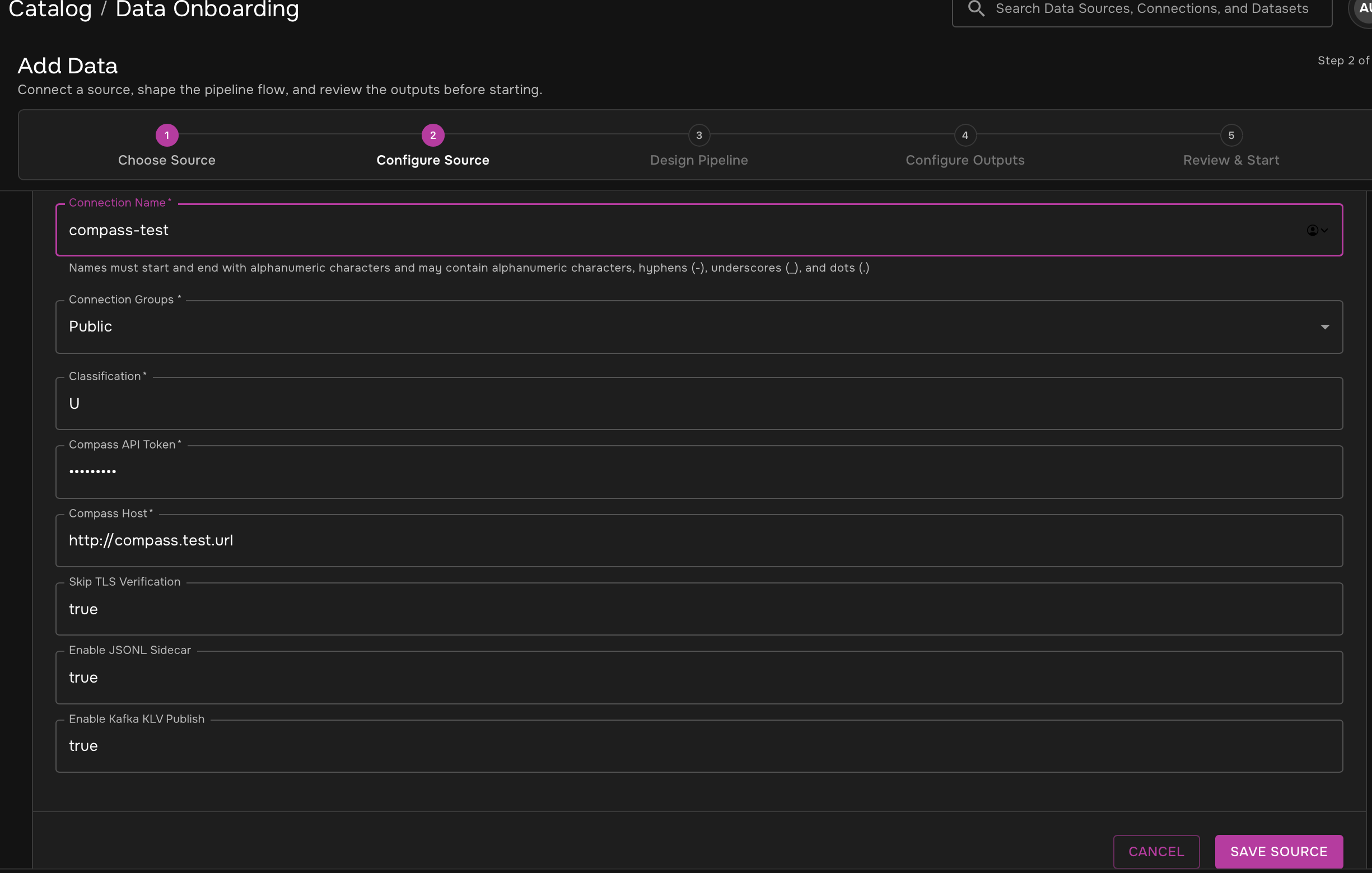
| Field | Required | What to enter | Example |
|---|---|---|---|
Connection Name |
Yes |
A readable name for this Compass connection. |
|
Connection Groups |
Yes |
The group that should own the connection. |
|
Classification |
Yes |
The classification marking for datasets created from the source. |
|
Compass API Token |
Yes |
Compass API token issued for this workflow. Treat this value as sensitive. |
|
Compass Host |
Yes |
Base host URL for the Compass environment. |
|
Skip TLS Verification |
Yes |
Set to |
|
Enable JSONL Sidecar |
Yes |
Set to |
|
Enable Kafka KLV Publish |
Yes |
Set to |
|
Step 4: Generate a Compass token
If you need a new Compass token, generate one from Compass. In Chrome, the generated token is copied to the clipboard after you select Generate.
-
Log in to Compass.
-
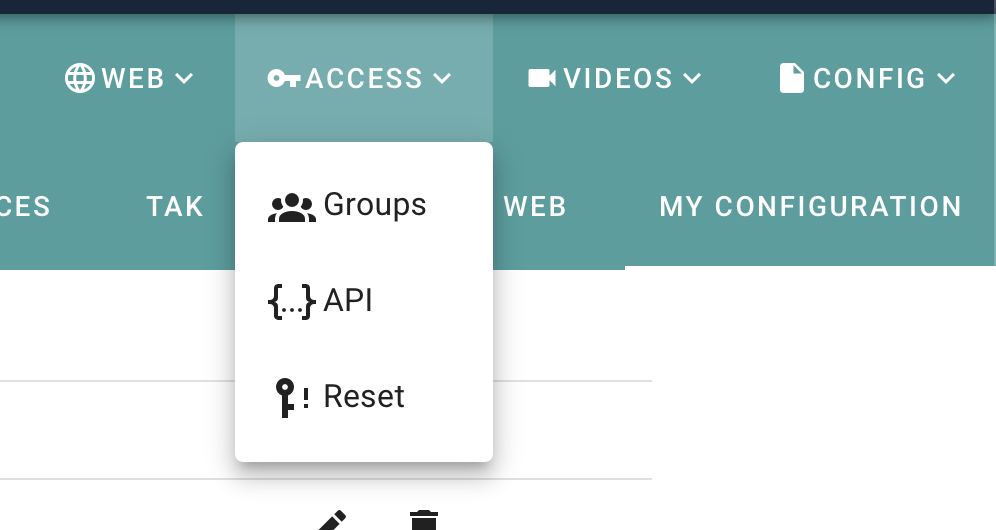
Open Settings.
-
From the Access menu, select API.
-
On the API Token screen, choose the token expiration, address, and role required for SDL access.
-
Select Generate.
-
Paste the copied token into the Compass API Token field in SDL.
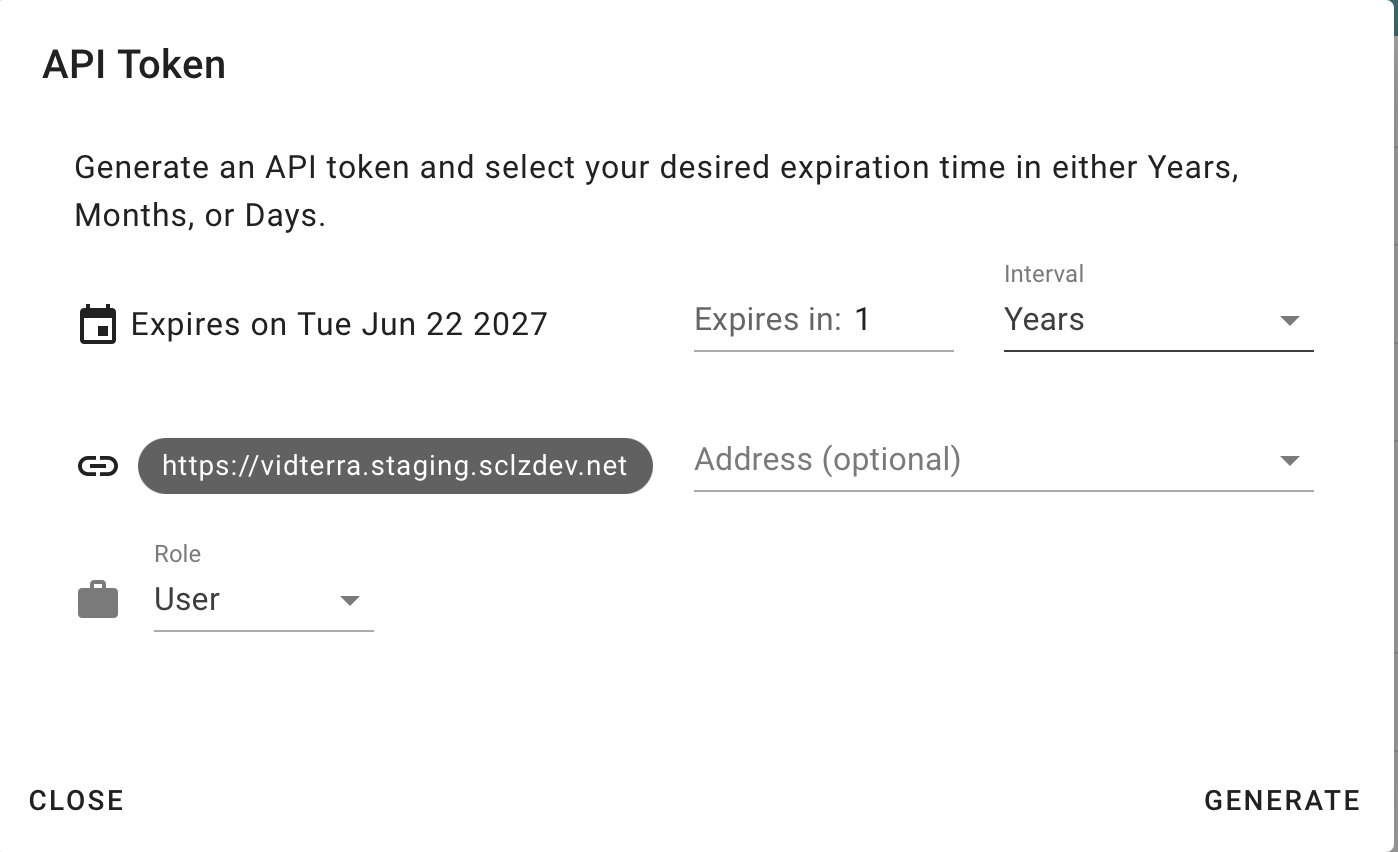
If no token is copied, use Chrome and try again. If token generation still fails, ask a Compass administrator to confirm your account can generate API tokens and that the selected role and address are valid for video feed discovery.
Step 5: Save the source and select a discovered feed
-
Return to the SDL Compass source configuration.
-
Confirm the Compass host, token, and boolean settings.
-
Select Save Source.
-
Wait for the Discovered Datasets list to populate.
-
Select the live feed that should trigger the pipeline.
-
Select Design Pipeline.
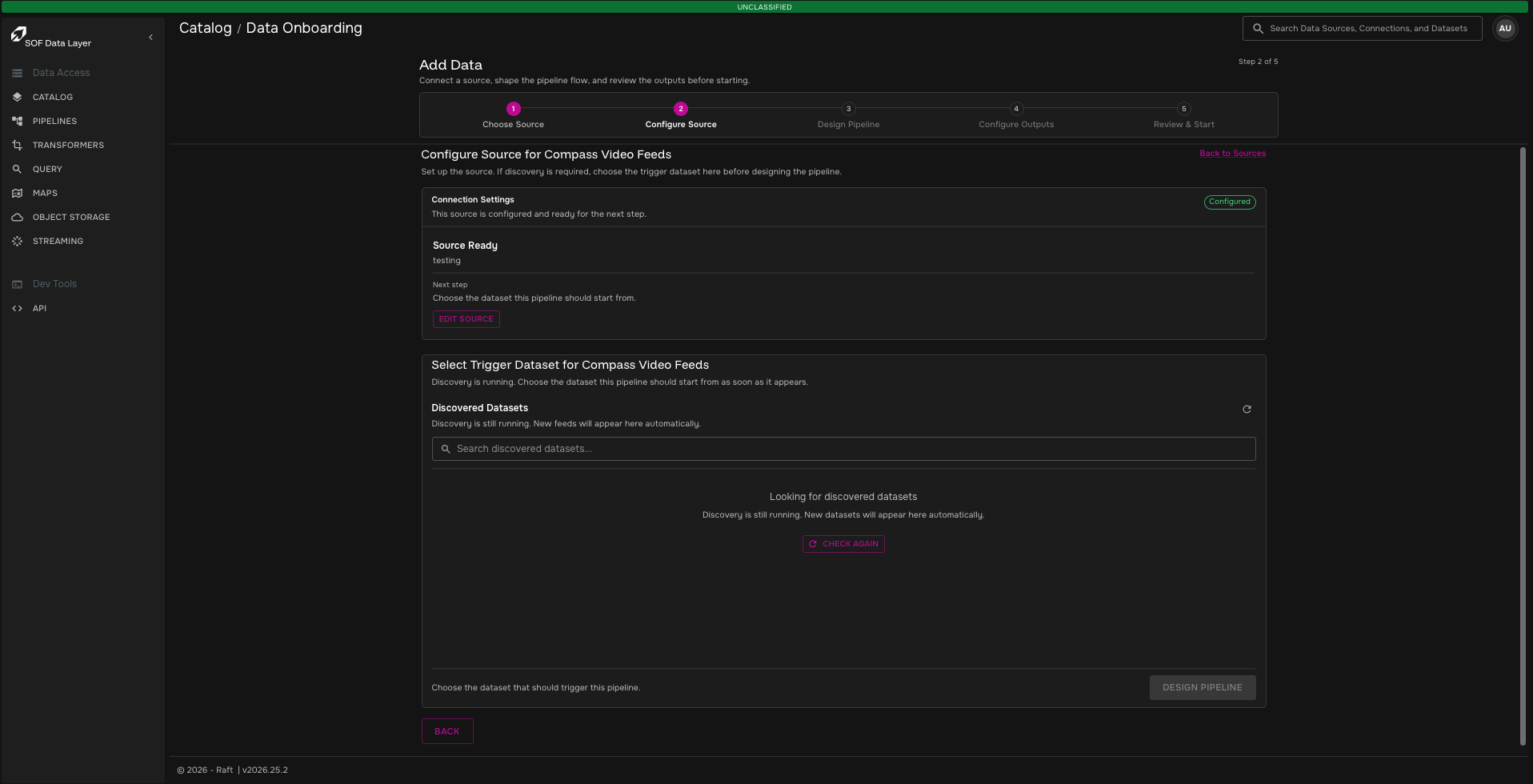
If no feeds appear, select Check Again.
If the list remains empty, verify the Compass host, API token permissions, Skip TLS Verification, Enable JSONL Sidecar, and Enable Kafka KLV Publish settings.
Step 6: Design the pipeline
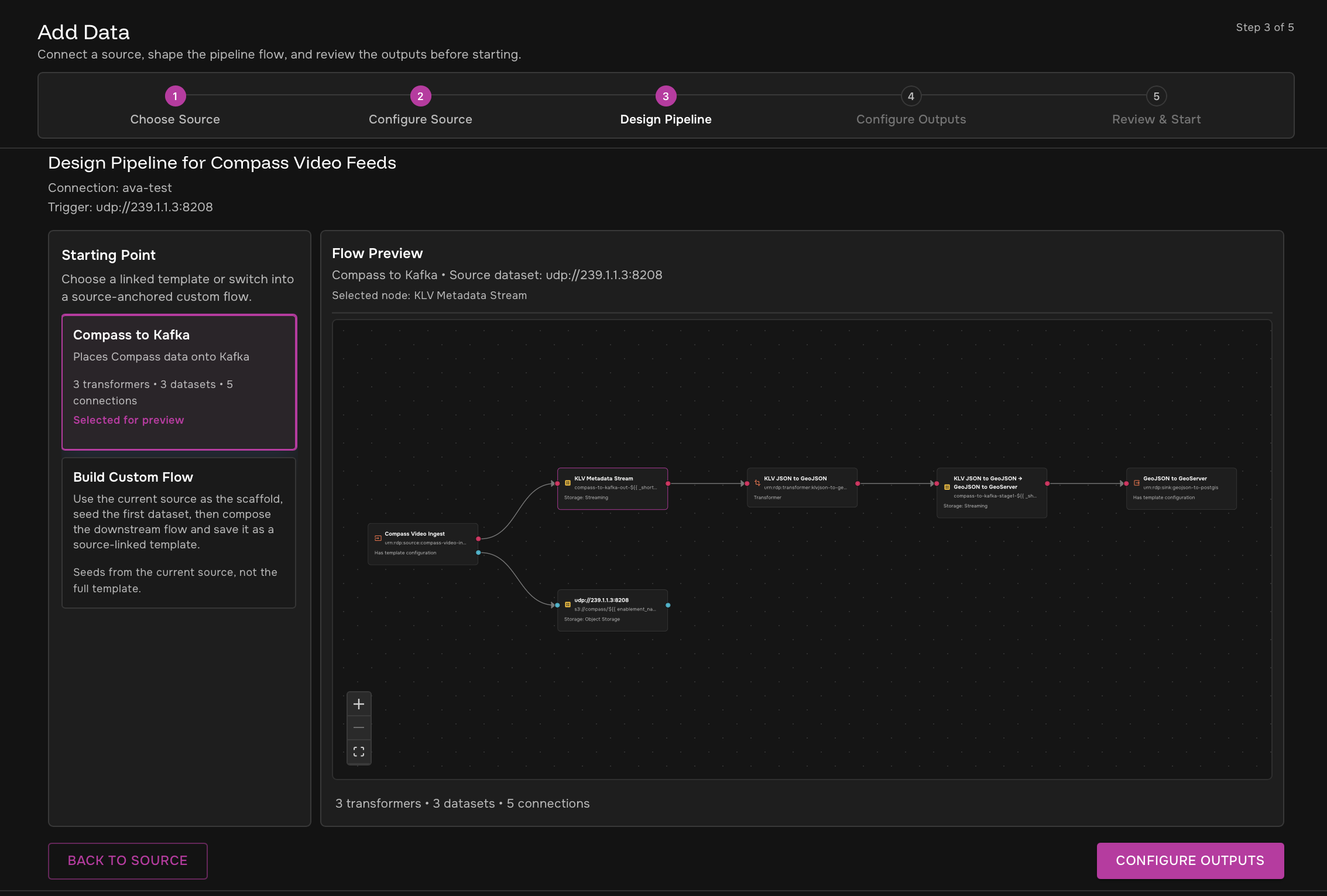
Choose how the Compass feed should be processed.
-
Select Compass to Kafka to use the preconfigured pipeline template.
-
Select Build Custom Flow if the mission requires a custom source-anchored flow.
The preconfigured Compass to Kafka template places Compass data on Kafka and includes downstream stages for KLV metadata and GeoJSON/GeoServer processing.
-
Select the desired starting point.
-
Review the flow preview.
-
Select Configure Outputs.
Step 7: Configure outputs
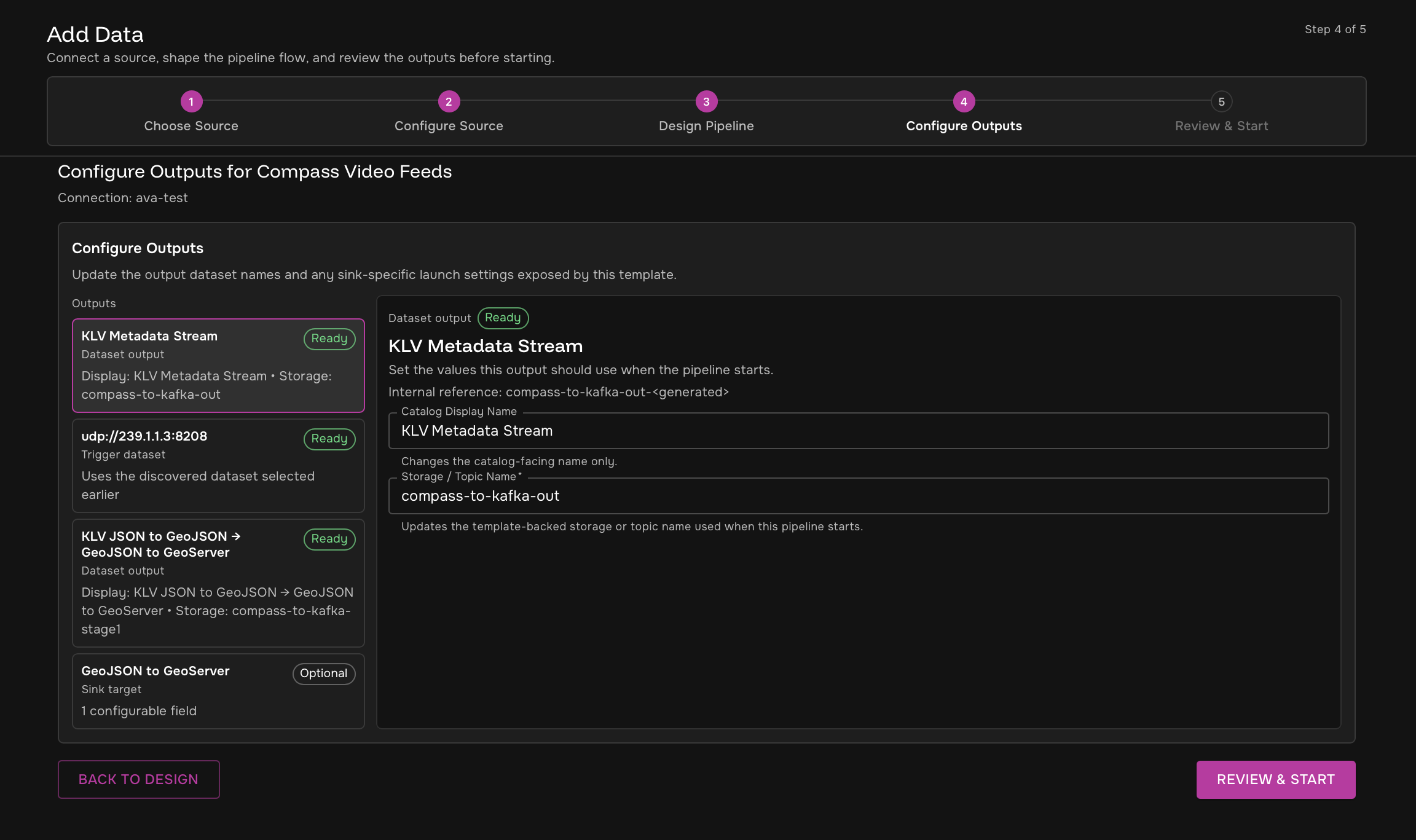
Review each output exposed by the selected template. Update dataset names, storage names, topic names, or sink-specific settings as needed.
-
Review the KLV Metadata Stream output.
-
Review the selected trigger dataset.
-
Review the KLV JSON to GeoJSON → GeoJSON to GeoServer output.
-
Configure the optional GeoJSON to GeoServer sink target if required.
-
Select Review & Start.
Step 8: Review and start
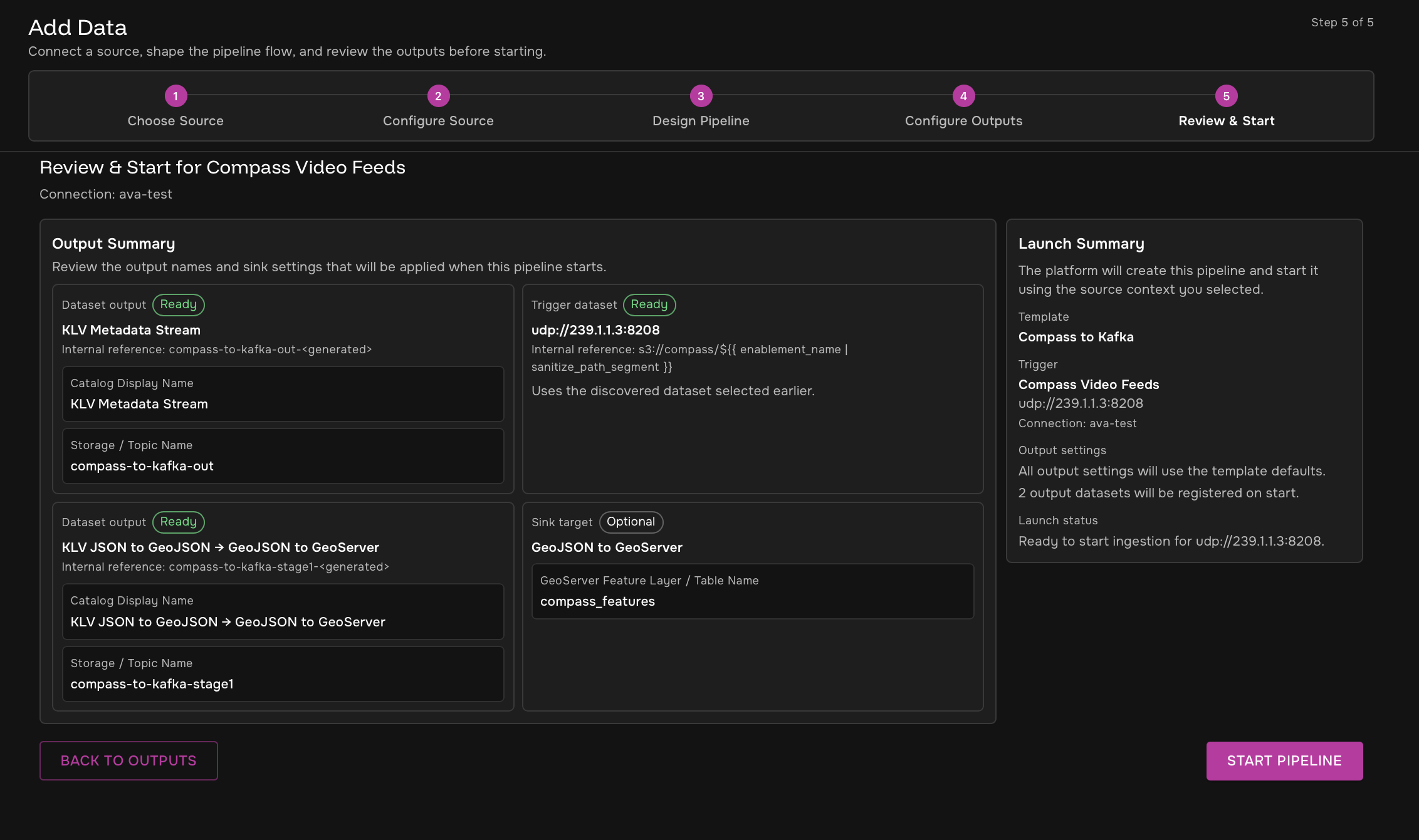
Review the output summary and launch summary before starting the pipeline. Confirm the selected template, trigger dataset, output datasets, and sink settings are correct.
-
Confirm all required outputs show Ready.
-
Confirm the launch summary references the expected Compass video feed.
-
Select Start Pipeline.
Step 9: View the running pipeline
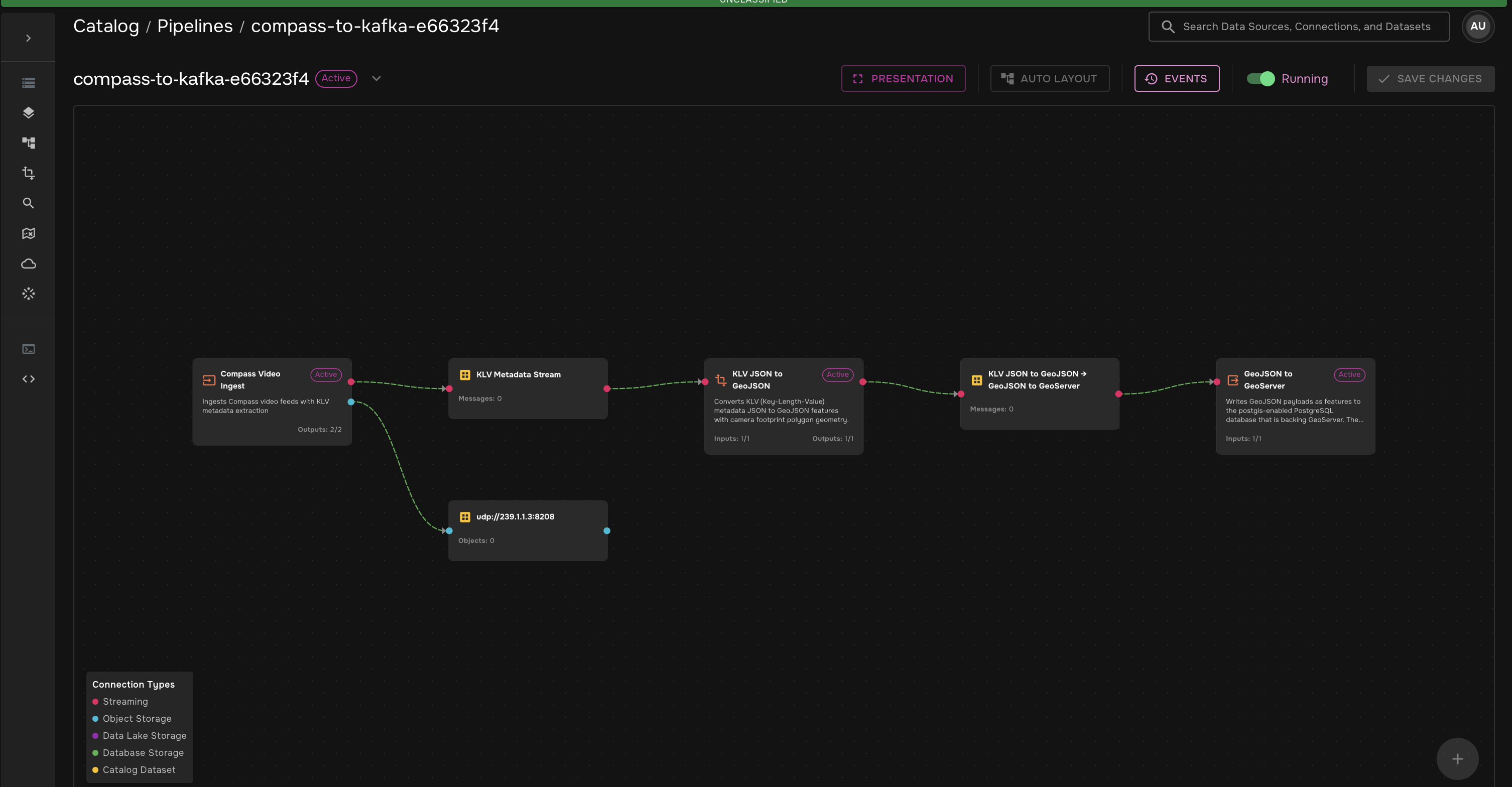
After the pipeline starts, SDL opens the pipeline view. Confirm the pipeline is running and that the expected stages are connected.
The preconfigured Compass pipeline includes:
-
Compass Video Ingest
-
KLV Metadata Stream
-
KLV JSON to GeoJSON
-
KLV JSON to GeoJSON → GeoJSON to GeoServer
-
GeoJSON to GeoServer
Validate Compass data
After the pipeline starts, verify:
| Check | Expected result |
|---|---|
Source |
The Compass source is configured and feed discovery succeeds. |
Trigger dataset |
The selected Compass feed appears as the trigger dataset. |
Pipeline status |
The Compass pipeline is running. |
Outputs |
Output datasets or streams are created for KLV metadata and downstream processing. |
Logs |
Logs do not show authentication, feed discovery, TLS, or KLV publishing errors. |
Troubleshooting
| Symptom | What to check |
|---|---|
Compass token does not copy |
Generate the token in Chrome. If it still does not copy, ask a Compass administrator to verify your token-generation permissions. |
No discovered feeds appear |
Verify the Compass host URL, API token, token role, and feed discovery permissions. |
TLS or certificate errors |
Confirm Skip TLS Verification is set to |
Metadata is missing downstream |
Confirm Enable JSONL Sidecar and Enable Kafka KLV Publish are set to |
Pipeline starts but no messages appear |
Confirm the selected Compass feed is live or has available KLV metadata. |