Simple SDM Pipeline
This example walks through a basic SDL streaming pipeline that generates synthetic Cursor-on-Target (CoT) XML messages, converts them to SDM entities, and publishes the entities to the SDM service.
Overview
In this example, you will:
-
Create a pipeline from scratch.
-
Add the built-in CoT XML Generator.
-
Store generated CoT XML messages in a streaming dataset.
-
Transform CoT XML into SDM protobuf messages.
-
Publish the transformed entities to SDM.
-
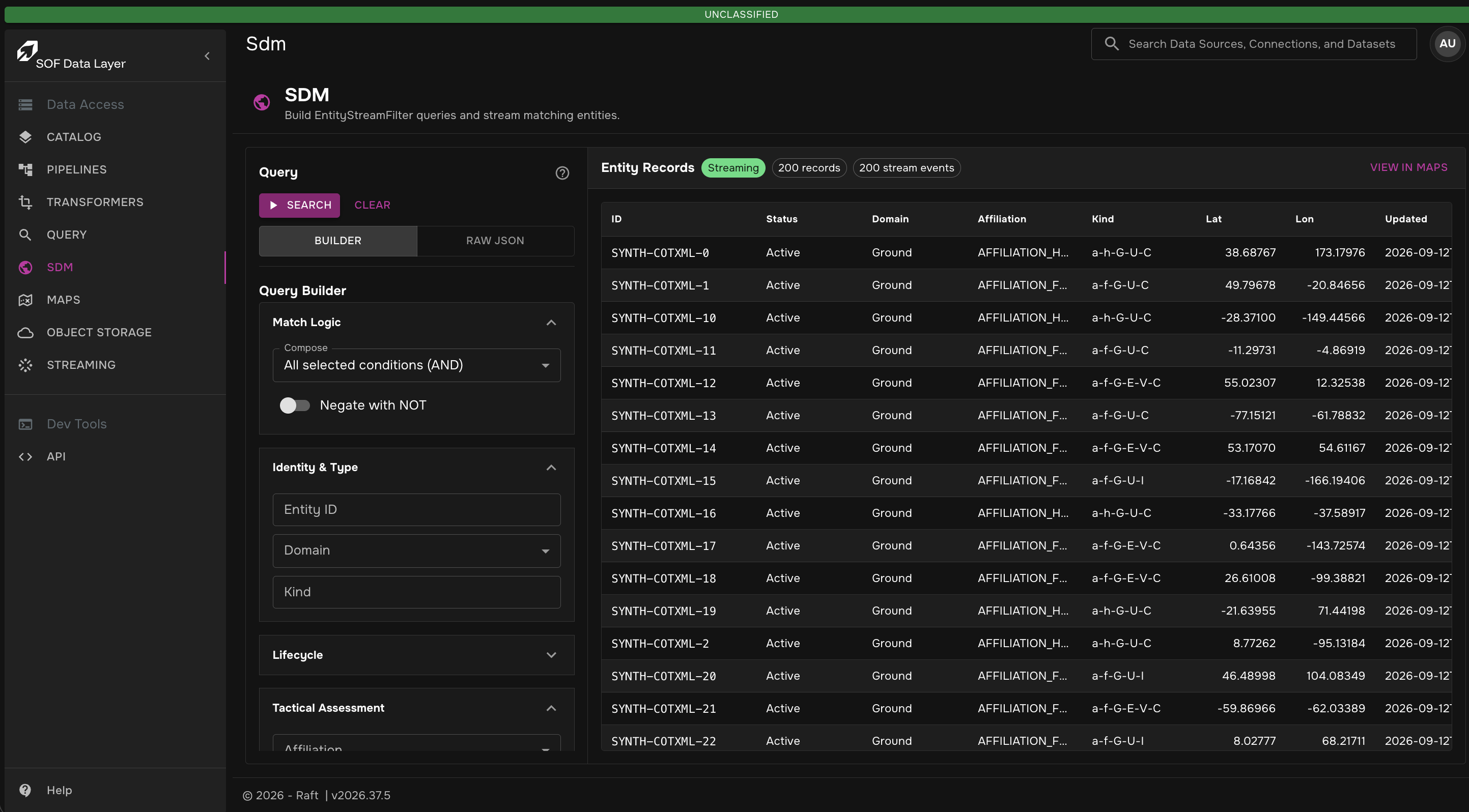
Confirm the published entities from the SDM page.
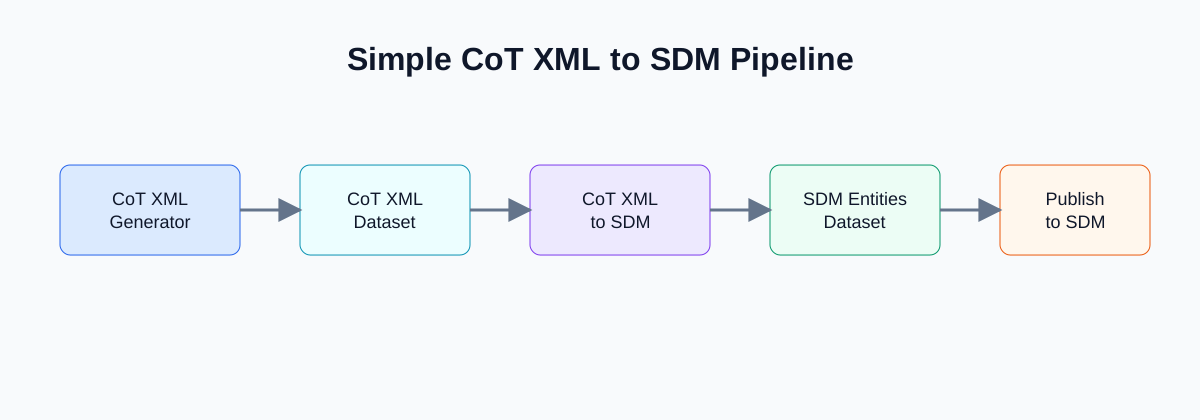
The completed pipeline follows this flow:
CoT XML Generator → CoT XML dataset → CoT XML to SDM transformer → SDM Entities dataset → Publish to SDM
Prerequisites
Before starting, ensure you have:
-
An active SDL account with permission to create and run pipelines.
-
Access to the CoT XML Generator, CoT XML to SDM, and Publish to SDM pipeline components.
-
Access to the SDM page to verify published entities.
Step 1: Create a Pipeline
-
Open Catalog.
-
Select Pipelines.
-
Click Create.
-
Choose Start From Scratch.
-
Enter a name such as
Simple CoT to SDM Pipeline. -
Add an optional description and tags.
-
Click Continue.
Step 2: Add the CoT XML Generator
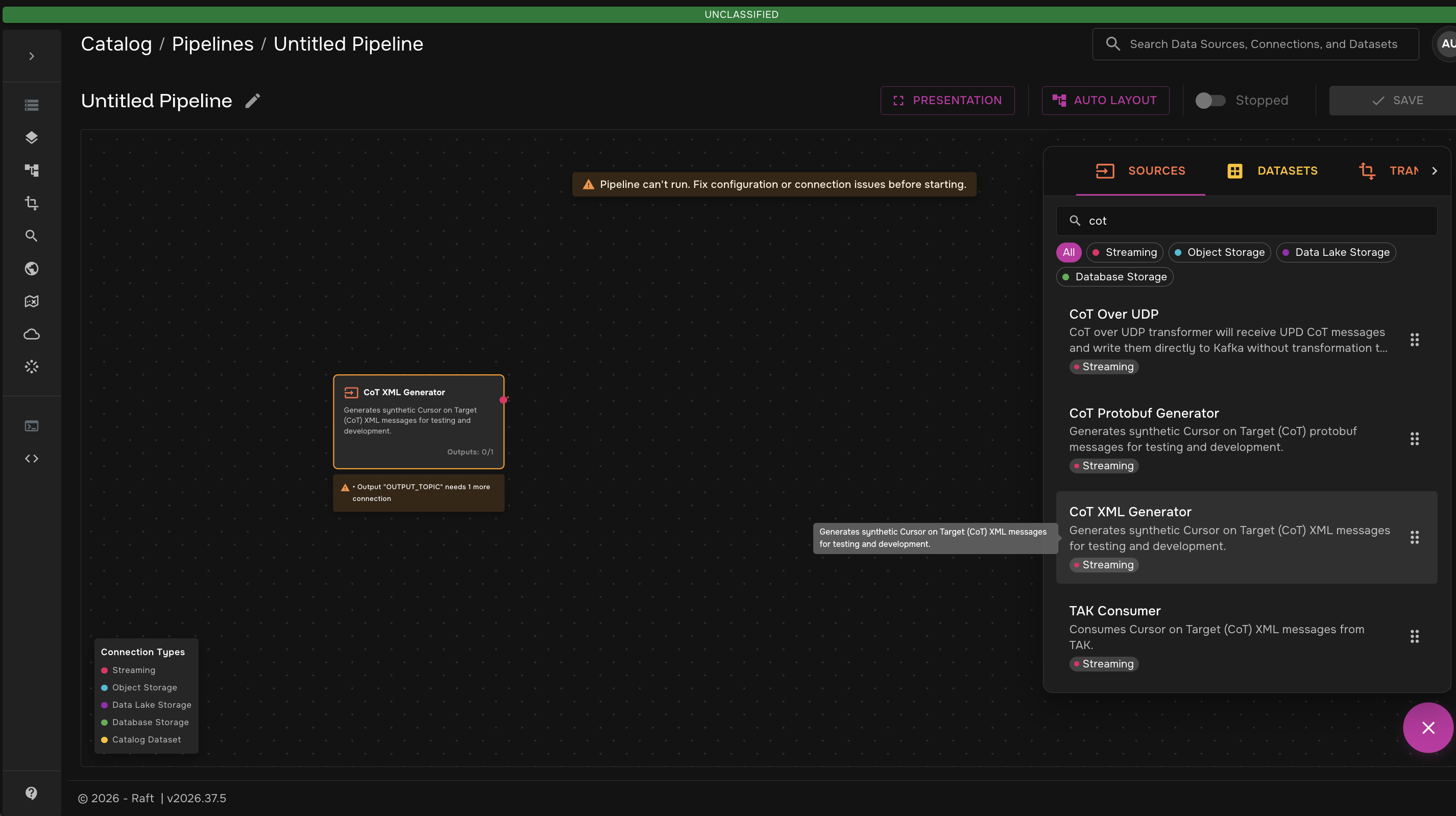
The CoT XML Generator creates synthetic CoT XML messages so you can test the pipeline without connecting an external TAK server or live tactical feed.
-
From the pipeline canvas, open the add menu.
-
Select the Sources tab.
-
Search for
CoT XML Generator. -
Add CoT XML Generator to the canvas.
Step 3: Create a CoT XML Dataset
Create a streaming dataset to hold the generated CoT XML messages.
-
Open the Datasets tab.
-
Add Create New Dataset to the canvas.
-
Select the dataset node.
-
Configure the dataset:
Field Value Display Name
CoT XMLDescription
Synthetic Cursor-on-Target XML messagesResource Type
StreamingResource Name
example-cot-xml -
Click Done.
-
Connect the CoT XML Generator output to the CoT XML dataset.
-
Click Save Changes.
| A storage warning can appear before the pipeline runs for the first time. The backing Kafka topic is created when the pipeline starts. |
Step 4: Convert CoT XML to SDM
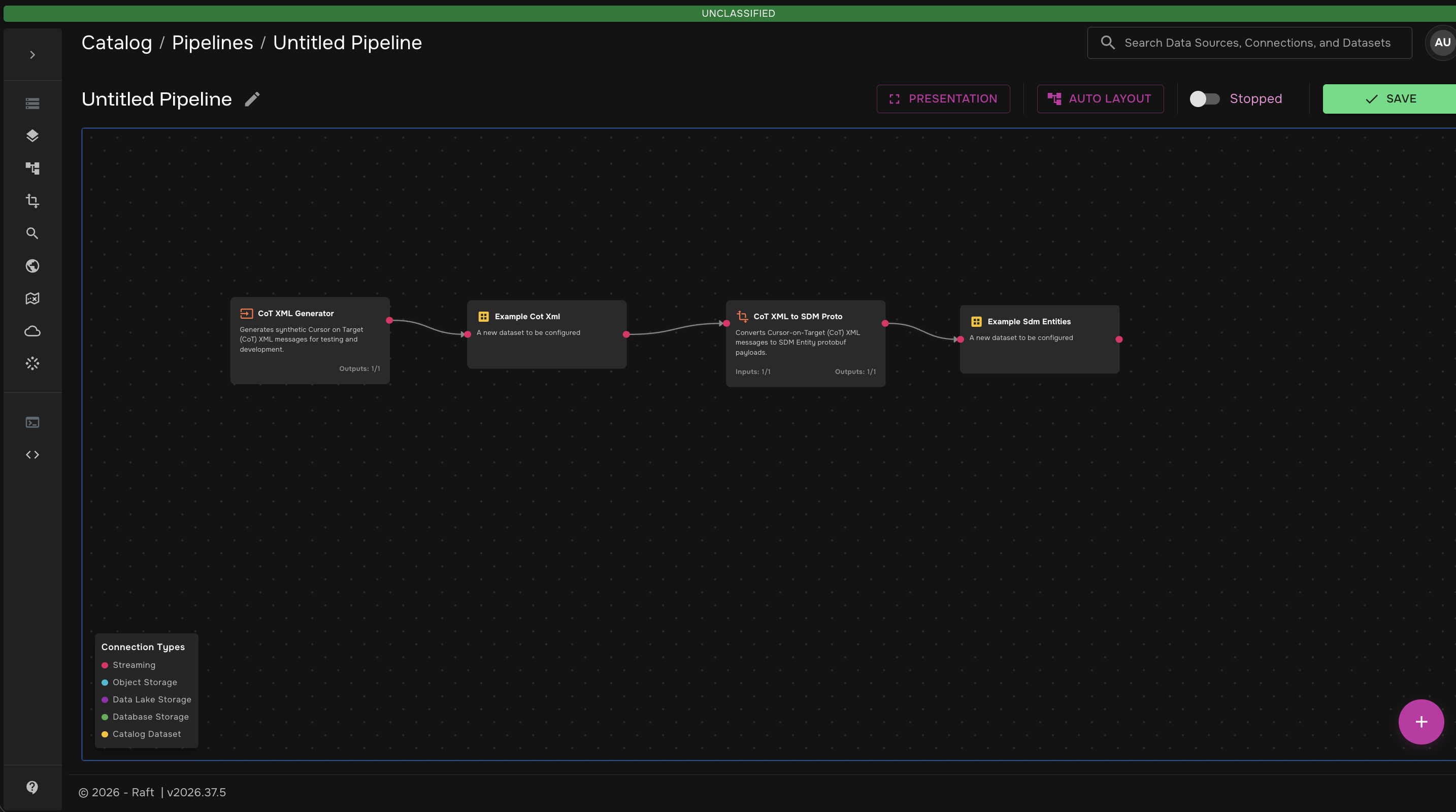
Add the transformer that converts each CoT XML message into an SDM entity message.
-
Open the Transformers tab.
-
Search for
CoT XML to SDM. -
Add the CoT XML to SDM transformer to the canvas.
-
Add another streaming dataset for transformed SDM entities.
-
Configure the dataset:
Field Value Display Name
SDM EntitiesDescription
SDM entities converted from synthetic CoT XMLResource Type
StreamingResource Name
example-sdm-entities -
Connect CoT XML to CoT XML to SDM.
-
Connect CoT XML to SDM to SDM Entities.
-
Click Save Changes.
Step 5: Publish to SDM
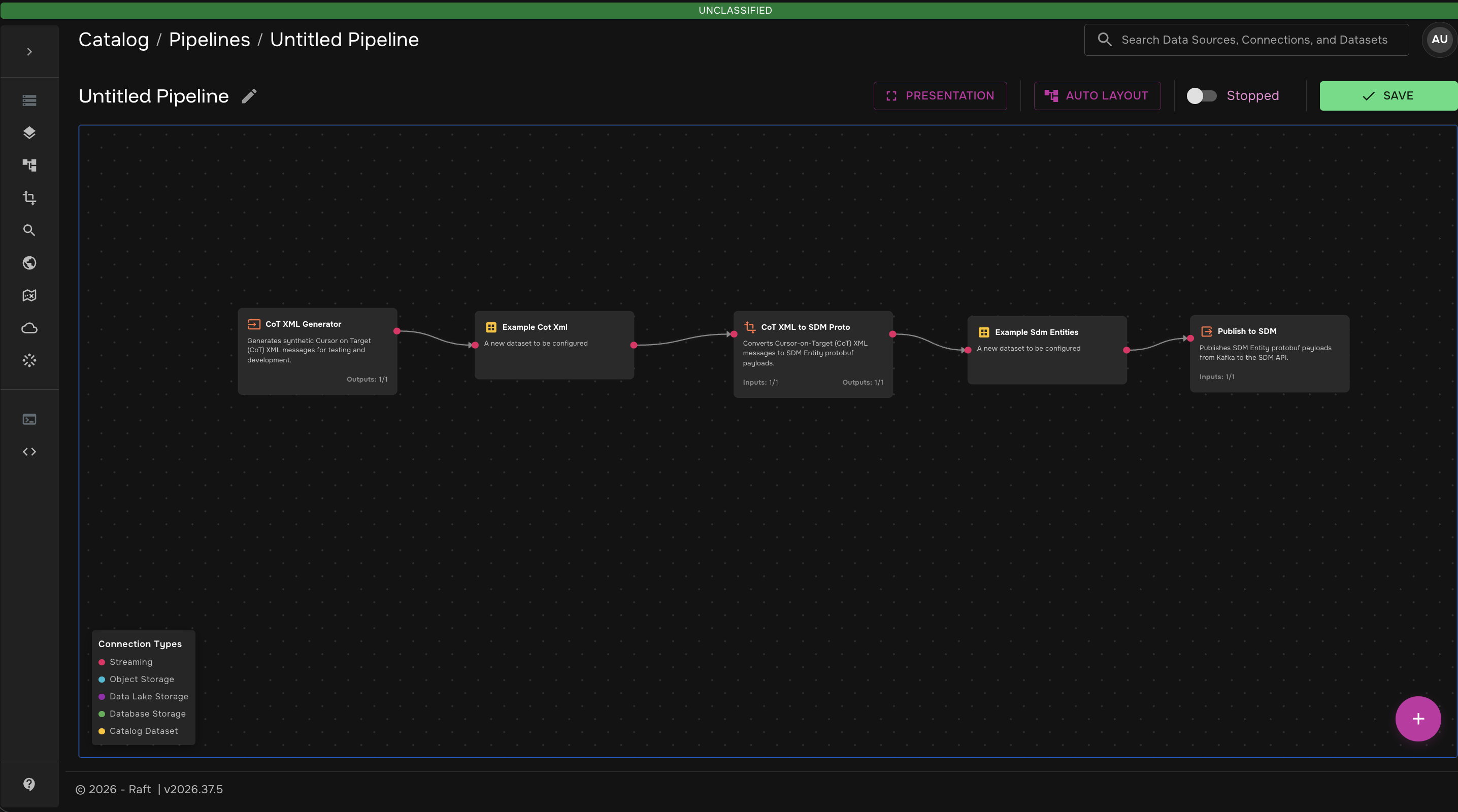
Add the sink that publishes the transformed SDM entities to the SDM service.
-
Open the Sinks tab.
-
Search for
Publish to SDM. -
Add Publish to SDM to the canvas.
-
Connect the SDM Entities dataset to Publish to SDM.
-
Open the sink configuration.
-
Leave the default SDM endpoint settings unless your environment requires custom values.
-
Click Done.
-
Click Save Changes.
Step 6: Run the Pipeline
-
Confirm each node has no required configuration warnings.
-
Click the start toggle in the pipeline header.
-
Wait for the pipeline stages to start.
-
Select each dataset and use Data Preview to confirm records are flowing.
The CoT XML dataset should show generated XML messages. The SDM Entities dataset should show transformed SDM entity messages.
Step 7: Verify Published Entities
Use the SDM page to confirm that the sink published entities successfully.
-
Open SDM from the main navigation.
-
Click Search with the default empty filter.
-
Confirm matching entity records appear.
-
Optionally filter by an entity ID from the pipeline output.
-
Click View in Maps to open Maps with the current SDM filter.
For more SDM search details, see SDM Page.
Expected Results
| Stage | Expected result |
|---|---|
CoT XML Generator |
Synthetic CoT XML messages are produced continuously. |
CoT XML dataset |
Generated CoT XML messages are visible in data preview. |
CoT XML to SDM |
CoT XML messages are transformed into SDM entity messages. |
SDM Entities dataset |
Transformed SDM entity messages are visible in data preview. |
Publish to SDM |
SDM entities are published to the SDM service. |
SDM page |
Published entities appear in SDM search results and can be opened in Maps. |
Key Takeaways
This example introduces the basic pipeline workflow:
-
generate test data,
-
persist stream data between stages,
-
transform tactical messages into SDM,
-
publish SDM entities to the platform service,
-
verify the result through the operator UI.
After completing this example, replace the generator with a real CoT source, such as a TAK Server connection, to use the same pattern with live operational data.